デバイスのディスプレイの大きさによってポイント数、画像サイズ、スケールなどが異なる
MakeAppIconで1枚の画像からアイコンを自動生成してくる

MyJanken/Assets.xcassets/AppIcon.appiconset にコピー&ペーストする
アイコンが追加されている

なんかiPhoneに派生して凄いことになってるな
随机应变 ABCD: Always Be Coding and … : хороший
デバイスのディスプレイの大きさによってポイント数、画像サイズ、スケールなどが異なる
MakeAppIconで1枚の画像からアイコンを自動生成してくる

MyJanken/Assets.xcassets/AppIcon.appiconset にコピー&ペーストする
アイコンが追加されている

なんかiPhoneに派生して凄いことになってるな
変数では通常値を変更できないが、@Stateで値を更新できるようになる
swiftは型推論を実装している
swift基本型: int, Uint(符号なし), Float, Double, String, Bool
初期値をnullとして、タップされたらグーに変わる
VStack {
if answerNumber == 0 {
Text("これからじゃんけんをします")
} else if answerNumber == 1 {
Image("gu")
.resizable()
.aspectRatio(contentMode: .fit)
Text("グー")
} else if answerNumber == 2 {
} else {
}
Button(action: {
print("タップされたよ!")
answerNumber = Int.random(in: 1...3)
}) {
Text("じゃんけんする!")
}
}
数値をランダムに算出するものを関数(function)と呼ぶ
同じジャンケンが続かないようにする
repeat {} while で繰り返し処理する
Button(action: {
answerNumber = Int.random(in: 1...3)
var newAnswerNumber = 0
repeat {
newAnswerNumber = Int.random(in: 1...3)
} while answerNumber == newAnswerNumber
answerNumber = newAnswerNumber
}) {
Text("じゃんけんする!")
}
スタイリング
Text("じゃんけんする!")
.frame(maxWidth: .infinity)
.frame(height: 100)
.font(.title)
.background(Color.pink)
.foregroundColor(Color.white)
こちらで完成
var body: some View {
VStack {
if answerNumber == 0 {
Spacer()
Text("これからじゃんけんをします")
.padding(.bottom)
} else if answerNumber == 1 {
Image("gu")
.resizable()
.aspectRatio(contentMode: .fit)
Text("グー")
Spacer()
} else if answerNumber == 2 {
Image("choki")
.resizable()
.aspectRatio(contentMode: .fit)
Text("チョキ")
.padding(.bottom)
Spacer()
} else {
Image("pa")
.resizable()
.aspectRatio(contentMode: .fit)
Text("パー")
.padding(.bottom)
Spacer()
}
Button(action: {
answerNumber = Int.random(in: 1...3)
var newAnswerNumber = 0
repeat {
newAnswerNumber = Int.random(in: 1...3)
} while answerNumber == newAnswerNumber
answerNumber = newAnswerNumber
}) {
Text("じゃんけんする!")
.frame(maxWidth: .infinity)
.frame(height: 100)
.font(.title)
.background(Color.pink)
.foregroundColor(Color.white)
}
}
}

なるほど、感どころはわかったような気がする
swift独特の書き方は覚えないといかんね。
Image, Text, Buttonを配置する
TextとButtonに背景、文字色、文字サイズを設定
Imageにじゃんけん画像を切り替える
ファイルの役割
– MyJankenApp.swift: アプリケーションのエントリーポイント
– ContentView.swift: アプリの基本的な画面
– Assets.xcassets: 画像、音楽ファイル、アイコン、色などのリソース
– Preview Asset: Preview用のアセットカタログ
### 画像ファイルの取り込み
Assets.xcassetsに画像をドラッグする

### レイアウト構成
VStack(垂直)、HStack(水平)、ZStack(奥行き)があり、組み合わせで親ビュー、子ビューにもなる
レイアウト: ContentView – VStack – Image, Text, Button – Text
### UIパーツの配置
struct ContentView: View {
var body: some View {
Image("gu")
}
}

Image(“gu”).resizable()でサイズを自動調整
struct ContentView: View {
var body: some View {
Image("gu")
.resizable()
.aspectRatio(contentMode: .fit)
}
}
struct: 構造体、 swiftは構造体推奨
ContentView: 構造体名、 swiftはViewプロトコルに準拠
View: プロトコル、 resizableやaspectRatioを利用できる
var: 変数、 後から値の変更が可能。定数は不可
body: 変数名
some: 型 具体的な戻り値を隠すことができる
{}: クロージャー
swiftでは、名前付き型(プロトコル型、クラス型、構造体型、数字文字文字列などのデータ型)と複合型(名前のない型で関数型とタプル型)の2種類がある
returnは省略される
「shift」 + 「command」 + 「L」でLibraryを表示し、VStackを表示
縦のカーソルを確認する
struct ContentView: View {
var body: some View {
VStack {
Image("gu")
.resizable()
.aspectRatio(contentMode: .fit)
Text("グー")
Button(action: {
print("タップされたよ!")
}) {
Text("じゃんけんする!")
}
}
}
}
ボタンをクリックするとテキストが表示される

ここからif文などを使っていくのね
xcodeは大分使い易くなった^^
「shift」 + 「command」 + 「L」でLibraryを表示
VStackでまとめる
VStack {
Text("Hello, world!")
.font(.largeTitle)
.padding()
Button(/*@START_MENU_TOKEN@*/"Button"/*@END_MENU_TOKEN@*/) {
/*@START_MENU_TOKEN@*//*@PLACEHOLDER=Action@*/ /*@END_MENU_TOKEN@*/
}
}
VStackの他にHStackやZStackもある
Add Modifierでbackgroundを追加する

– textをwhiteにしてpaddingを追加する
– @State var outputText = “Hello, World!” で変数を宣言する
– outputText = “Hi, Swift!” を定義
struct ContentView: View {
@State var outputText = "Hello, World!"
var body: some View {
VStack {
Text(outputText)
.font(.largeTitle)
.padding()
Button(action: {
outputText = "Hi, Swift!"
}) {
Text("切り替えボタン")
.foregroundColor(Color.white)
.padding(.all)
.background(Color.blue)
}
}
}
}
Canvas: Static Mode, Live Preview
シミュレータ: Xodeツールの一部としてインストールされている
実機: 全ての機能を確認
Canvasのライブプレビューでテストできるので、シミュレータを起動しなくても確認できる

iPhone12以外でもiPadなど様々なデバイスで確認できる
コードでcanvasのpreviewを変更
struct ContentView_Previews: PreviewProvider {
static var previews: some View {
ContentView()
.previewDevice("iPhone 8")
}
}

複数デバイスのプレビュー
struct ContentView_Previews: PreviewProvider {
static var previews: some View {
ContentView()
.previewDevice("iPhone 8")
ContentView()
.previewDevice("iPad Pro (9.7-inch)")
}
}

PinPreviewで表示を固定
### シミュレータの起動
Runを押す
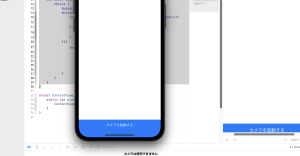
シミュレータは時間がかかる、カメラは閲覧できない
シミュレータは停止してから画面を閉じる

なるほど、前のストーリーボードから大分仕様が変わったなwww
Kerasのモデル保存は、「.h5」というHDF5拡張し(階層データ形式)で保存する
Hierarchical Data Formatの略で5はバージョン
CSVより早い

from tensorflow.keras.models import load_model
model = load_model('ETL7-model.h5')
print(model.summary())
Model: “sequential”
_________________________________________________________________
Layer (type) Output Shape Param #
=================================================================
conv2d (Conv2D) (None, 30, 30, 32) 320
batch_normalization (BatchN (None, 30, 30, 32) 128
ormalization)
activation (Activation) (None, 30, 30, 32) 0
max_pooling2d (MaxPooling2D (None, 15, 15, 32) 0
)
dropout (Dropout) (None, 15, 15, 32) 0
conv2d_1 (Conv2D) (None, 13, 13, 64) 18496
batch_normalization_1 (Batc (None, 13, 13, 64) 256
hNormalization)
activation_1 (Activation) (None, 13, 13, 64) 0
conv2d_2 (Conv2D) (None, 11, 11, 64) 36928
batch_normalization_2 (Batc (None, 11, 11, 64) 256
hNormalization)
activation_2 (Activation) (None, 11, 11, 64) 0
max_pooling2d_1 (MaxPooling (None, 5, 5, 64) 0
2D)
dropout_1 (Dropout) (None, 5, 5, 64) 0
flatten (Flatten) (None, 1600) 0
dense (Dense) (None, 512) 819712
batch_normalization_3 (Batc (None, 512) 2048
hNormalization)
activation_3 (Activation) (None, 512) 0
dropout_2 (Dropout) (None, 512) 0
dense_1 (Dense) (None, 48) 24624
activation_4 (Activation) (None, 48) 0
=================================================================
Total params: 902,768
Trainable params: 901,424
Non-trainable params: 1,344
_________________________________________________________________
from tensorflow.keras.models import load_model
from PIL import Image
import numpy as np
model = load_model('ETL7-model.h5')
img = Image.open("test.jpg").convert('L')
img.thumbnail((32, 32))
img = np.array(img)
pred = model.predict(img[np.newaxis]) # numpyのnewaxis
print(np.argmax(pred))
load_modelで読み込みはできるが、それを使って操作する方法がわからん…
ETL8でひらがなだけでなく、漢字もできるとのこと。
使用条件

会員登録を行い、ETLをDLする

binaryから画像にする
import struct
from PIL import Image, ImageEnhance
import glob, os
RECORD_SIZE = 2052
outdir = "ETL7-img/"
if not os.path.exists(outdir): os.mkdir(outdir)
files = glob.glob("ETL7/*")
fc = 0
for fname in files:
fc = fc + 1
print(fname)
f = open(fname, "rb")
f.seek(0)
i = 0
while True:
i = i + 1
s = f.read(RECORD_SIZE)
if not s: break
r = struct.unpack('>H2sH6BI4H4B4x2016s4x', s)
iF = Image.frombytes('F', (64, 63), r[18], 'bit', 4)
iP = iF.convert('L')
code_jis = r[3]
dir = outdir + "/" + str(code_jis)
if not os.path.exists(dir): os.mkdir(dir)
fn = "{0:02x}-{1:02x}{2:04x}.png".format(code_jis, r[0], r[2])
fullpath = dir + "/" + fn
enhancer = ImageEnhance.Brightness(iP)
iE = enhancer.enhance(16)
iE.save(fullpath, "PNG")
print("ok")
pickleの作成
import numpy as np
import cv2
import matplotlib.pyplot as plt
import glob
import pickle
out_dir = "./ETL7-img"
im_size = 32
save_file = out_dir + "/JapaneseHiragana.pickle"
plt.figure(figsize=(9, 17))
hiraganadir = list(range(177, 223+1))
hiraganadir.append(166)
result = []
for i, code in enumerate(hiraganadir):
img_dir = out_dir + "/" + str(code)
fs = glob.glob(img_dir + "/*")
print("dir=", img_dir)
for j, f in enumerate(fs):
img = cv2.imread(f)
img_gray = cv2.cvtColor(img, cv2.COLOR_BGR2GRAY)
img = cv2.resize(img_gray, (im_size, im_size))
result.append([i, img])
if j == 3:
plt.subplot(11, 5, i + 1)
plt.axis("off")
plt.title(str(i))
plt.imshow(img, cmap="gray")
pickle.dump(result, open(save_file, "wb"))
plt.show
正解率 0.973809540271759 loss 0.09567940980195999

なんか出来てるっぽい
手書き文字認識はMNISTのデータセットを使って、keras, kaggleからデータを取り込むことができる。
import tensorflow as tf import numpy as np import matplotlib.pyplot as plt mnist = tf.keras.datasets.mnist.load_data() train, test = mnist (x_train, y_train),(x_test, y_test) = mnist print(x_train.shape) print(y_train.shape) print(x_test.shape) print(y_test.shape)
(60000, 28, 28) // 28x28pxのデータが60000枚
(60000,)
(10000, 28, 28) // 28x28pxのデータが10000枚
(10000,)
データセットを画像で確認
print(x_train[0])
plt.imshow(x_train[0])
plt.savefig('image.jpg',dpi=100)
### モデルの作成
x_train = x_train / 255.0 # 0-1の間に抑えるよう正規化する
x_test = x_test / 255.0
# Sequential(系列)モデル構築 インスタンスにリストを追加する
model = tf.keras.models.Sequential()
model.add(tf.keras.layers.Input((28, 28))) # 入力層は28x28
model.add(tf.keras.layers.Flatten()) # 一元配列1, 784 に変換
# 入力層から情報を受け継いで計算を行う中間層
model.add(tf.keras.layers.Dense(128)) # 128個に全結合
model.add(tf.keras.layers.Activation(tf.keras.activations.relu)) # 中間層の活性化関数の設定, reluは0以下は0、0以上は入力値を出力
model.add(tf.keras.layers.Dropout(0.2)) # 過学習を防ぐため20%ドロップアウト
# 出力
model.add(tf.keras.layers.Dense(10)) # 出力層0~9の10個
model.add(tf.keras.layers.Activation(tf.keras.activations.softmax)) # softmax関数は出力値の合計が100%になる
# コンパイル
model.compile(
optimizer=tf.keras.optimizers.Adam(), # optimizerは逆伝播モジュール 手本と出力を比較して重みw, バイアスbを修正, AdamはAdaptive Moment Estimationの略でmomentumSGDとRMSpropを合わせたアルゴリズム
loss=tf.keras.losses.sparse_categorical_crossentropy, # 誤差関数モジュール 正解値と予想値のズレを計算
metrics=[tf.keras.metrics.sparse_categorical_accuracy] # 評価関数
)
# fitで学習 epochsで5回
model.fit(x_train, y_train, epochs=5)
print(model.evaluate(x_test, y_test))
plt.imshow(x_test[0])
plt.savefig('data/test_img.jpg',dpi=100)
# predict
pred = model.predict(x_test[0][np.newaxis]) # numpyのnewaxis
print(np.argmax(pred)) # 一番大きい要素
img = Image.open("data/handwriting.jpg").convert('L')
img.thumbnail((28, 28))
img = np.array(img)
pred = model.predict(img[np.newaxis]) # numpyのnewaxis
print(np.argmax(pred)) # 一番大きい要素

[0.0724998340010643, 0.9782000184059143]
7
3
ほう
lavelImageをやり直します

import os
os.environ["GOOGLE_APPLICATION_CREDENTIALS"] = "data/vision.json"
import io
import cv2
import matplotlib.pyplot as plt
import matplotlib
from google.cloud import vision
import xml.etree.ElementTree as ET
img = cv2.imread("img/license.jpeg")
client = vision.ImageAnnotatorClient()
with io.open("img/license.jpeg", 'rb') as image_file:
content = image_file.read()
image = vision.Image(content=content)
response = client.document_text_detection(image=image)
text_infos = []
document = response.full_text_annotation
for page in document.pages:
for block in page.blocks:
for paragraph in block.paragraphs:
for word in paragraph.words:
for symbol in word.symbols:
bounding_box = symbol.bounding_box
xmin = bounding_box.vertices[0].x
ymin = bounding_box.vertices[0].y
xmax = bounding_box.vertices[2].x
ymax = bounding_box.vertices[2].y
xcenter = (xmin+xmax)/2
ycenter = (ymin+ymax)/2
text = symbol.text
text_infos.append([text, xcenter, ycenter])
tree = ET.parse("data/license.xml")
root = tree.getroot()
result_dict = {}
for obj in root.findall("./object"):
name = obj.find('name').text
xmin = obj.find('bndbox').find('xmin').text
ymin = obj.find('bndbox').find('ymin').text
xmax = obj.find('bndbox').find('xmax').text
ymax = obj.find('bndbox').find('ymax').text
xmin, ymin, xmax, ymax = int(xmin), int(ymin), int(xmax), int(ymax)
texts = ''
for text_info in text_infos:
text = text_info[0]
xcenter = text_info[1]
ycenter = text_info[2]
if xmin <= xcenter <= xmax and ymin <= ycenter <= ymax:
texts += text
result_dict[name] = texts
for k, v in result_dict.items():
print('{} : {}'.format(k, v))
$ python3 app.py
name : 日本花子
birthday : 昭和61年5月1日生)
address : 東京都千代田区霞加喂2-1-2
data of issue : 令和01年05月07日12345
expiration date : 12024年(今和06年)06月01日未有动
driver license : 運転免許証
number : 第012345678900号
Public Safety Commission : 00000公安委員会
Finally
やっと来たね
というか、サイズが一定なら免許証以外でもOCRできるね
tesseractよりvison APIの方が性能が良さそうなので、
vison APIを触ってみる
こちらの公式の
https://cloud.google.com/vision/docs/quickstart-client-libraries?hl=JA
1. GCPアカウントに行く
2. Vison APIを有効にする

3. サービスアカウントの作成

ロールを基本 -> オーナーで設定
4. 作成したサービスアカウントでキーを作成

鍵を追加でjsonタイプの新しい鍵を追加する
5. jsonをubuntuに配置
L vison.jsonとしますww

$ pip3 install –no-cache-dir –force-reinstall -Iv grpcio==1.43.0
$ pip3 install google-cloud-vision
image/license.jpeg

main.py
import os
os.environ["GOOGLE_APPLICATION_CREDENTIALS"] = "vision.json"
import io
from google.cloud import vision
client = vision.ImageAnnotatorClient()
with io.open("img/license.jpeg", 'rb') as image_file:
content = image_file.read()
image = vision.Image(content=content)
response = client.document_text_detection(image=image)
print(response)

print(response.text_annotations[0].description)
$ python3 main.py
氏名
日
本
花子
昭和61年5月1日生)
住所 東京都千代田区霞加喂2-1-2
交付 令和01年05月07日 12345
12024年(今和06年)06月01日未有动
眼鏡等
免許の
条件等
見本
優良
番号| 第 012345678900 号
|– 平成15年04月01日
查
他平成17年06月01日
(三種平成29年08月01日
運転免許証
天特普二
大自天持
普皇引
種類
大型小特
中型原付
THI
141
00000
公安委員会
Em
KA | ||
Q00
又
うおおおおおおおおおおおおおおおおおおおおおおお
萎えたああああああああああああああああ
免許証画像は以下を使用する

tesseract_layoutの値を1から10まで変更して検証する
### tesseract_layout=1
$ python3 main.py
(mm| 日 本 花 子 軌和61年 5月
]1 日生
人誠| 東京都生代田区霞が関2ー 1一2
け| 令和01年05807H 12345
### tesseract_layout=2
$ python3 main.py
Traceback (most recent call last):
File “main.py”, line 9, in
txt = tools[0].image_to_string(
File “/home/vagrant/.local/lib/python3.8/site-packages/pyocr/tesseract.py”, line 386, in image_to_string
raise TesseractError(
pyocr.error.TesseractError: (-1, “Unable to find output file (tested [‘/tmp/tmpuiijvfgx/output.txt’])”)
### tesseract_layout=3
$ python3 main.py
(mm| 日 本 花 子 軌和61年 5月
]1 日生
人誠| 東京都生代田区霞が関2ー 1一2
信和01年05』07H 12345
### tesseract_layout=4
$ python3 main.py
(名| 日 本 花 子 昭和61年 5月 1日生
人誠| 東京都生代田区霞が関2ー 1一2
交付| 令和O1年05』07H 12345
2024箇(06$06有O1Hまで勧
%の 眼鏡等
条件等
見 本
き引第 012345678900 号
0
を人 ト民捧人構誠還| 〇〇OOO
=層衣2908』018導笛にに回較固 ま中
### tesseract_layout=5
$ python3 main.py
| |
に 5
中 M
加 9
9
避 Ok
ら 呈較っ
守 CN OS
| 較 抽| |睦旧旧計員
ー|。居 則遇|
| mp
– 還 RE 逢遇
| | 国~園 必g式還
玲|上 O、 は半較|
陸中 8
| 錠 [壮 加|
| 略叶RS sss
是 陸中
| 還|二 地
| 層間 ら5 8さき
EE ーーベ
[es = 絆|還> 証庄計
首日 EHP
### tesseract_layout=6
$ python3 main.py
(信所| 東京都寺代田区霞が関2-1一2
$和01キ05』07B 12345
天の 眼鏡等 に
条件等
見本 *
*引012345678900 呈 叶
に天上1 5404』01H話司にに放還 ま
に17108801間 汗天市生天 )
にafW29*08801 只間四時間 Sgms 583
### tesseract_layout=7
$ python3 main.py
で 敵 ーー an
### tesseract_layout=8
$ python3 main.py
で 敵
### tesseract_layout=9
$ python3 main.py
|
### tesseract_layout=10
$ python3 main.py
er
### 結論
tesseract_layout=4, lang=’jpn’ が一番まともな気がするけど、
なんでだろう?
きちんと精度高く読み取るにはGoogleのVison APIで実装するっぽいな…